

Add slides and presentations
Embed Google Slides, Canva, PowerPoint, Keynote, Figma, Prezi, Pitch, Gamma, SlideShare, or Beautiful.ai in a lesson.
A lesson can include more than one slide deck. On the lesson Materials tab, click Edit, open the Slide tab, then click Add slide. Choose your platform and paste the full iframe embed code from that tool. A share link is not enough.
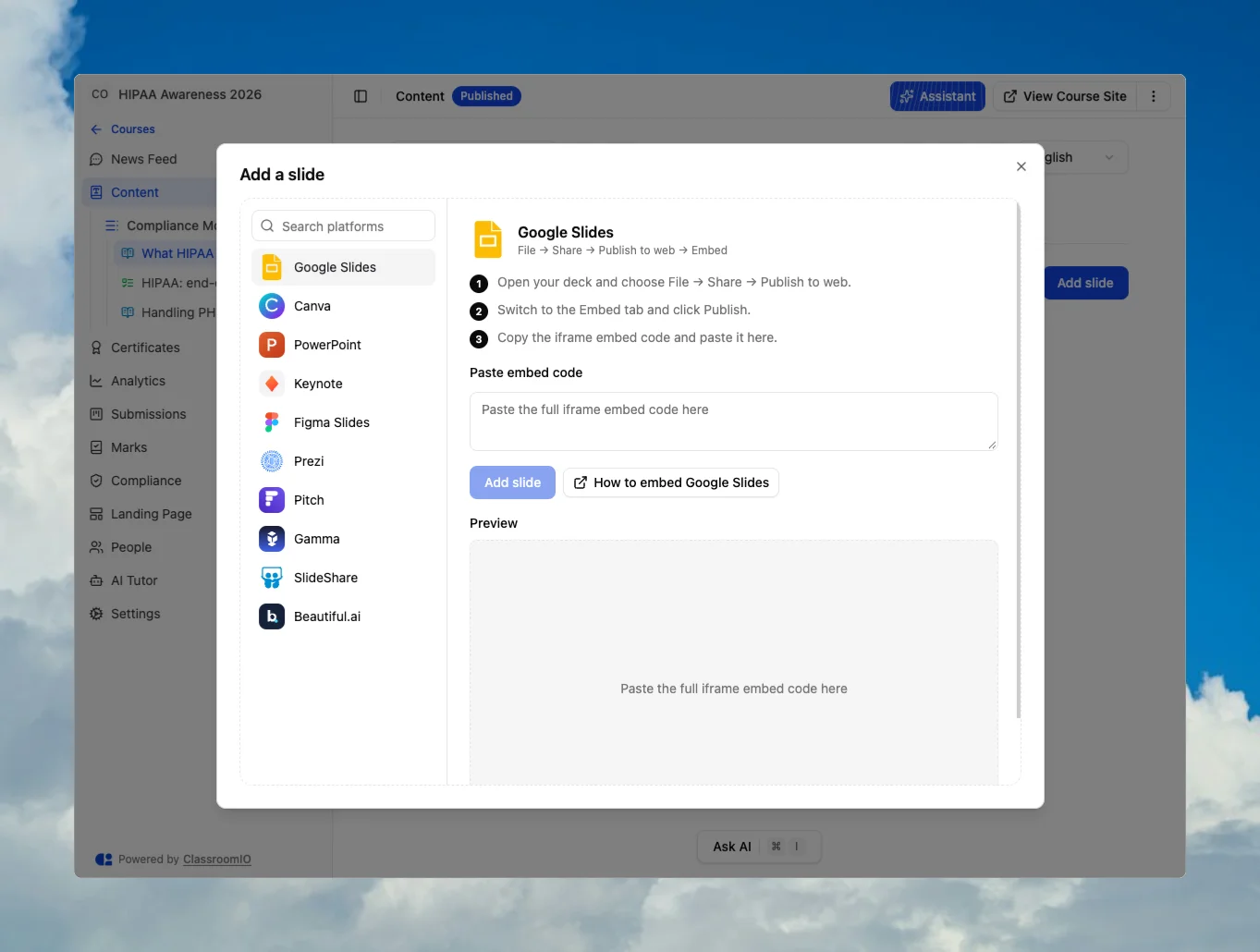
Edvello pulls the src URL from the snippet, ignores its width and height, and renders each deck at 16.
Google Slides
- Open the deck and choose File → Share → Publish to web.
- Open the Embed tab and click Publish.
- Copy the iframe code and paste it into Edvello.
Canva
- Above the editor, click Share → More.
- Choose Embed and confirm (this makes the design public).
- Copy the HTML embed code and paste it into Edvello.
PowerPoint
- Save the deck to OneDrive and open it in PowerPoint for the web.
- Choose File → Share → Embed.
- Copy the iframe code and paste it into Edvello.
Personal OneDrive embeds are viewable without signing in. Work or school OneDrive may show a Microsoft sign-in wall to learners.
Keynote
- Click Collaborate and set access to Anyone with the link · View only.
- Copy the iCloud link, then get the website embed code.
- Paste the iframe code into Edvello. Keep collaboration enabled or the embed stops working.
Figma Slides
- Open the Figma Slides file and enable link sharing.
- Copy the embed code for the
/slidesor/deckfile. - Paste the iframe code into Edvello.
Prezi
- From the dashboard, open Share on the presentation.
- Click Embed and copy the code.
- Paste the iframe code into Edvello.
Pitch
- Click Share → Share externally and create a public link.
- Open the link Options (⋯) and choose Copy embed code.
- Paste the iframe code into Edvello. Disabling the public link breaks the embed.
Gamma
- Open Share and toggle Allow public access.
- Copy the generated iframe embed code.
- Paste it into Edvello.
SlideShare
- Open the public deck on slideshare.net.
- Click Share under the viewer and open the Embed tab.
- Copy the iframe code and paste it into Edvello.
Beautiful.ai
- Open Sharing Settings and switch the deck to Public.
- Click Get Embed Code.
- Paste the iframe code into Edvello.