
Control Course Progression
Require students to move through a course in order, with lessons and exercises that only complete when your rules are met.
By default students can open any unlocked item in any order. With sequential progression they must finish each item before the next one unlocks, and you decide what “finished” means for every lesson and exercise. This is the backbone of a structured training flow: watch the video, pass the quiz, earn the certificate.
Choose a progression mode
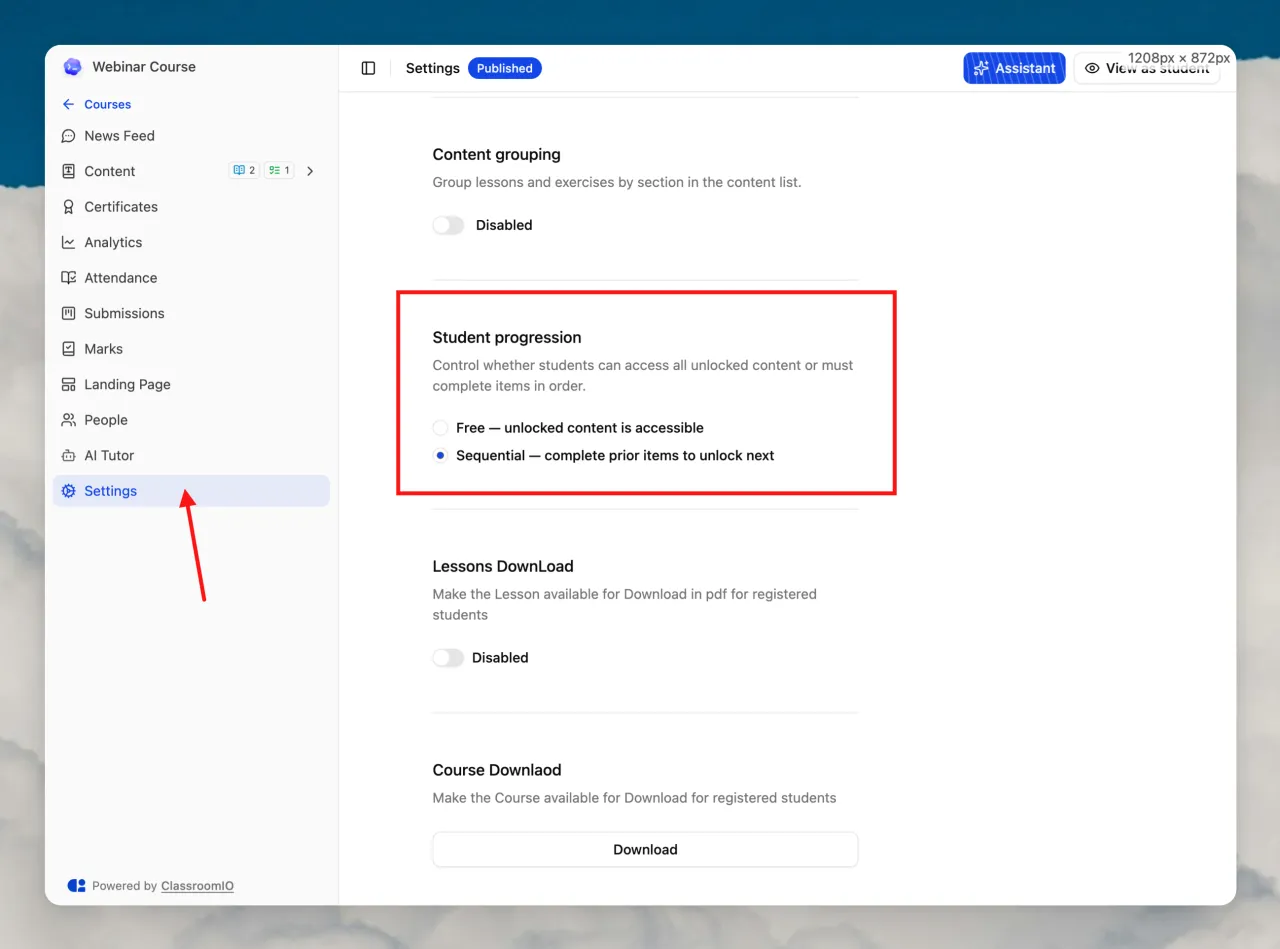
In the course’s Settings tab, find the Student progression section and pick one:
| Mode | Behavior |
|---|---|
| Free | Students open any unlocked item in any order and mark lessons complete themselves. |
| Sequential | The next item stays locked until the current (or previous) item is complete. |
Set how a lesson completes
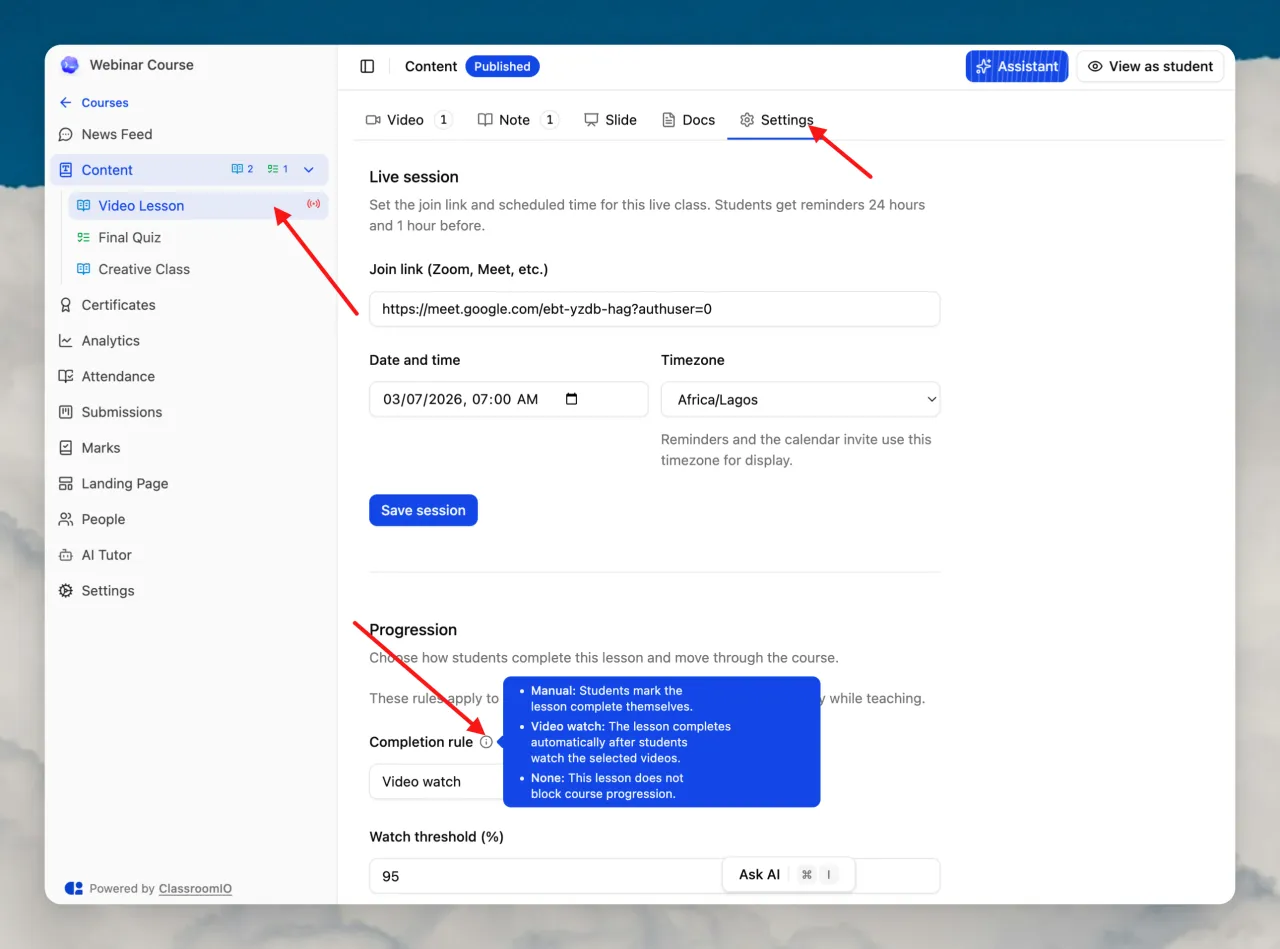
Open a lesson, go to its Settings tab, and choose a Completion rule:
| Rule | Completes when |
|---|---|
| Manual | The student clicks to mark the lesson complete. |
| Video watch | The student watches the selected videos. Set the Watch threshold (%) (for example 95%). |
| None | The lesson never blocks progression. |
Set how an exercise completes
Open an exercise, go to its Settings tab, and choose a Completion rule:
- Submitted: the exercise completes as soon as the student submits any answer.
- Passed: the exercise completes only when the student’s score meets the Pass threshold (%) you set.
Use Passed when an exercise must be cleared before the course can continue or a certificate can be issued.
Gate the certificate
In the course’s Certificates settings, turn on certificate download and set Minimum completion (%) (for example 100%). The certificate unlocks only after the student completes that share of the course, which, under sequential progression, means they have watched the videos and finished the exercises in order.
See Create Certificates for templates, signatures, and the certificate ID.
What students see
1. Locked items
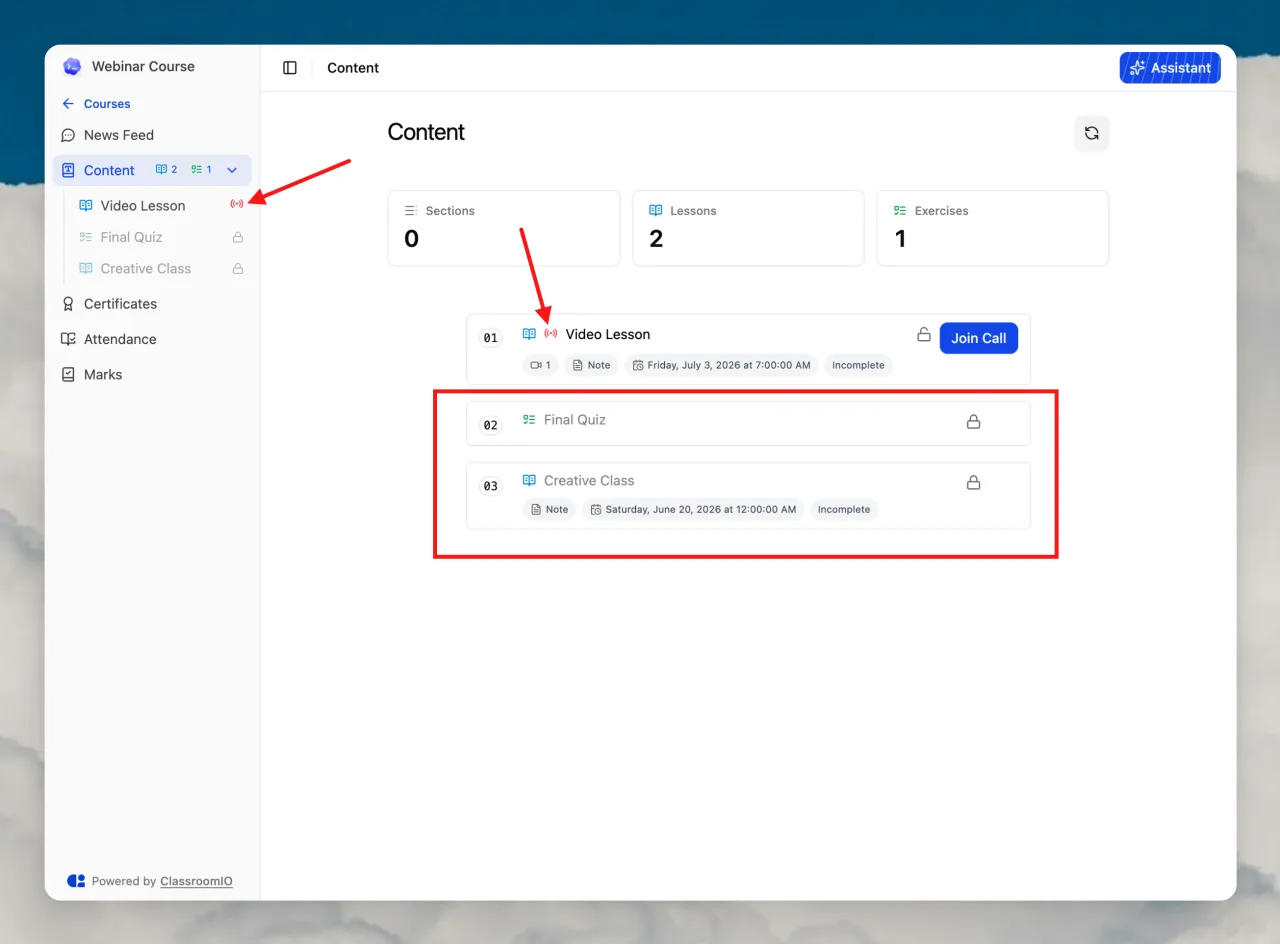
Under Sequential progression, the next item stays locked until the student completes the one before it. For example, a quiz that follows a lesson stays locked until that lesson is complete. In the course content list a locked item is greyed out with a lock icon and cannot be opened; it unlocks automatically once the previous required item is done. If a student opens a not-yet-available item directly, they see a Complete previous content first notice.
2. A video they cannot skip
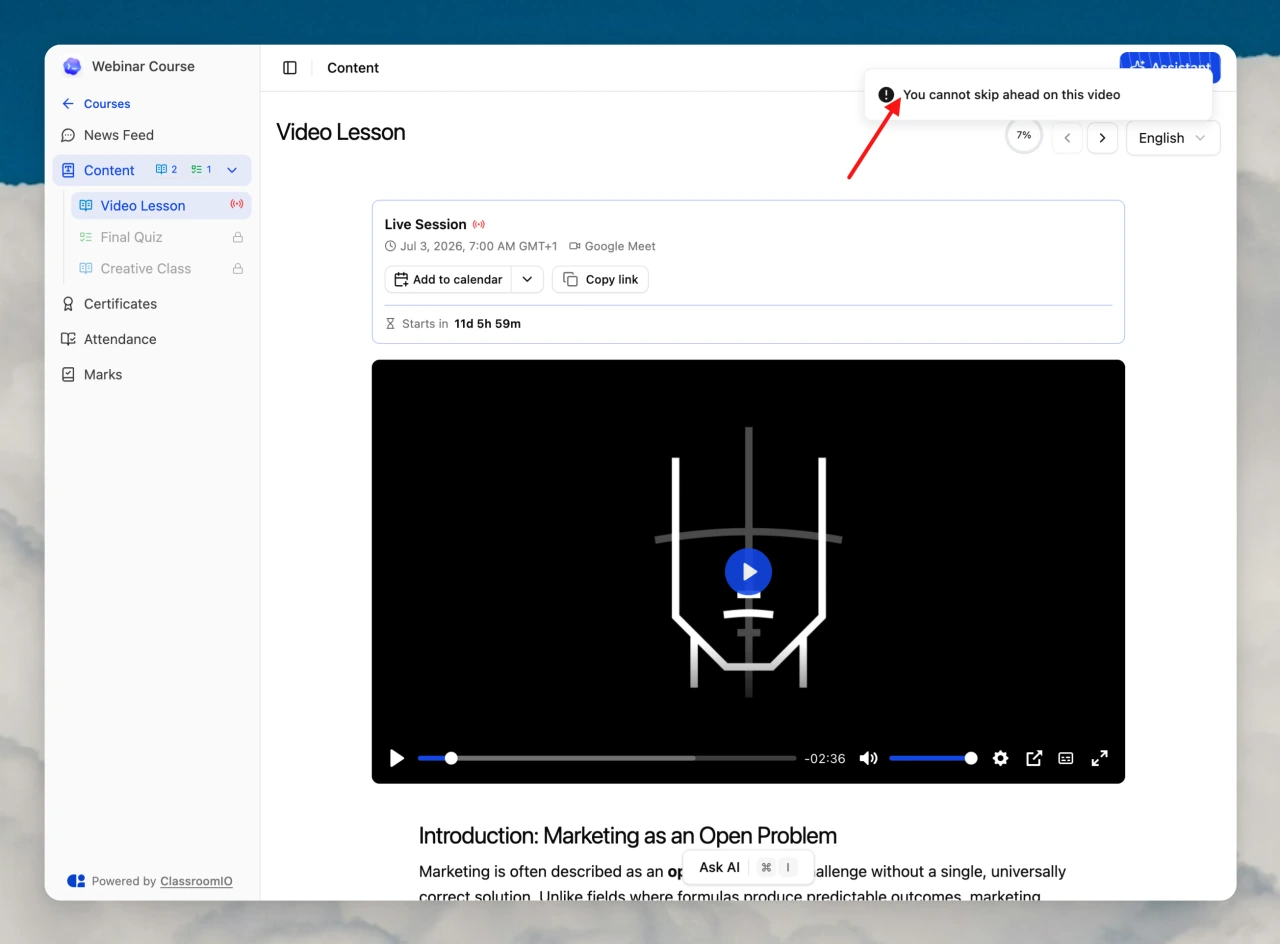
On a Video watch lesson, the progress percentage climbs as they watch. Trying to jump ahead shows a “you cannot skip ahead” notice, and the video pauses if they leave the tab.
3. Completion and the certificate
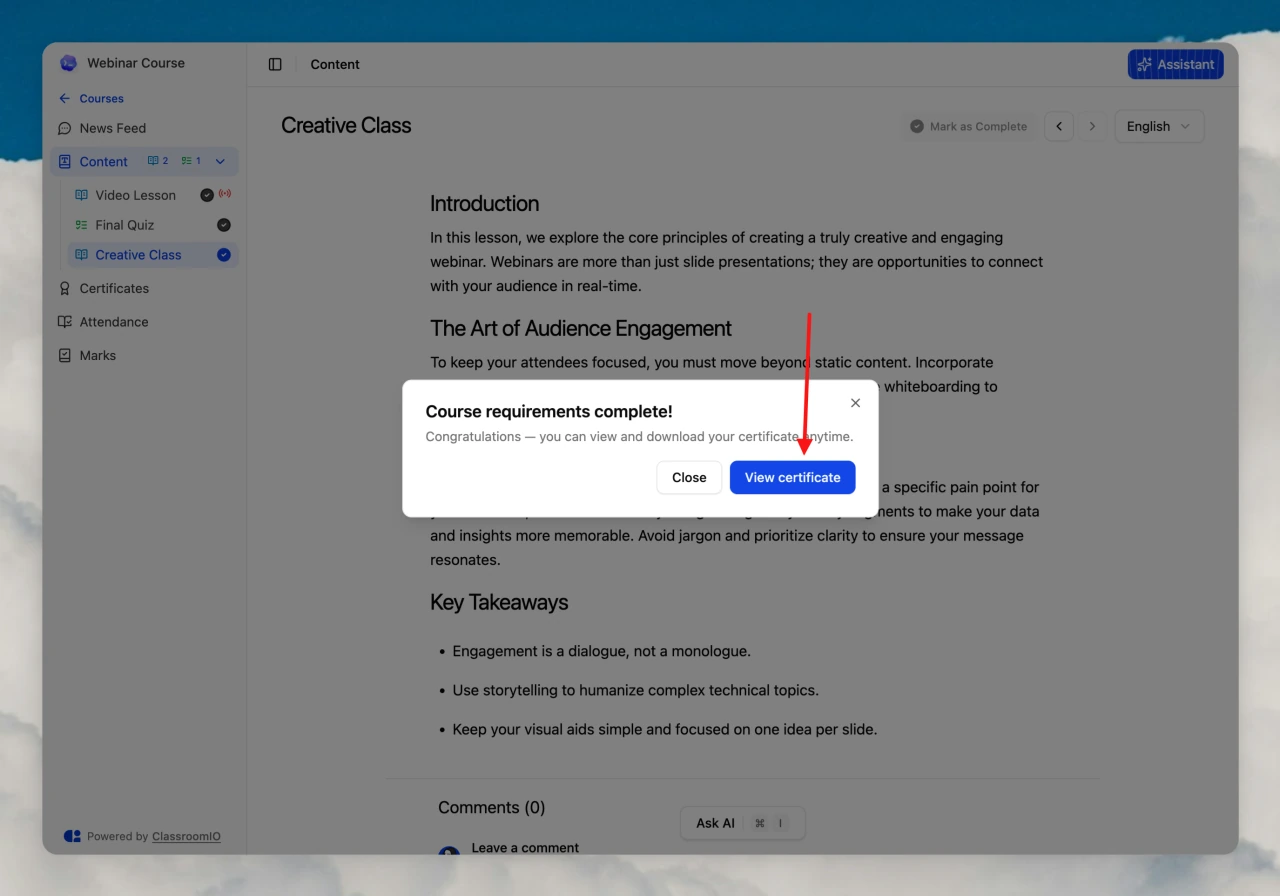
Reaching the watch threshold marks the lesson complete and unlocks the next item. After they finish the final requirement, the course is complete and they can view and download their certificate.
Related guides
- Course Types: Self-paced, Live class, Compliance, and Public
- Create an Exercise: build the quiz that gates progression
- Create Certificates: what students earn at the end
- Run a Live Class: schedule live sessions alongside on-demand content