

Create an Exercise
Learn how to create exercises in Edvello.
In Edvello, exercises are a great way to assess students’ understanding through practice activities. Once you’ve set up your organization, created a course, and added a lesson, you can start creating exercises. Follow the process below to create your first exercise.
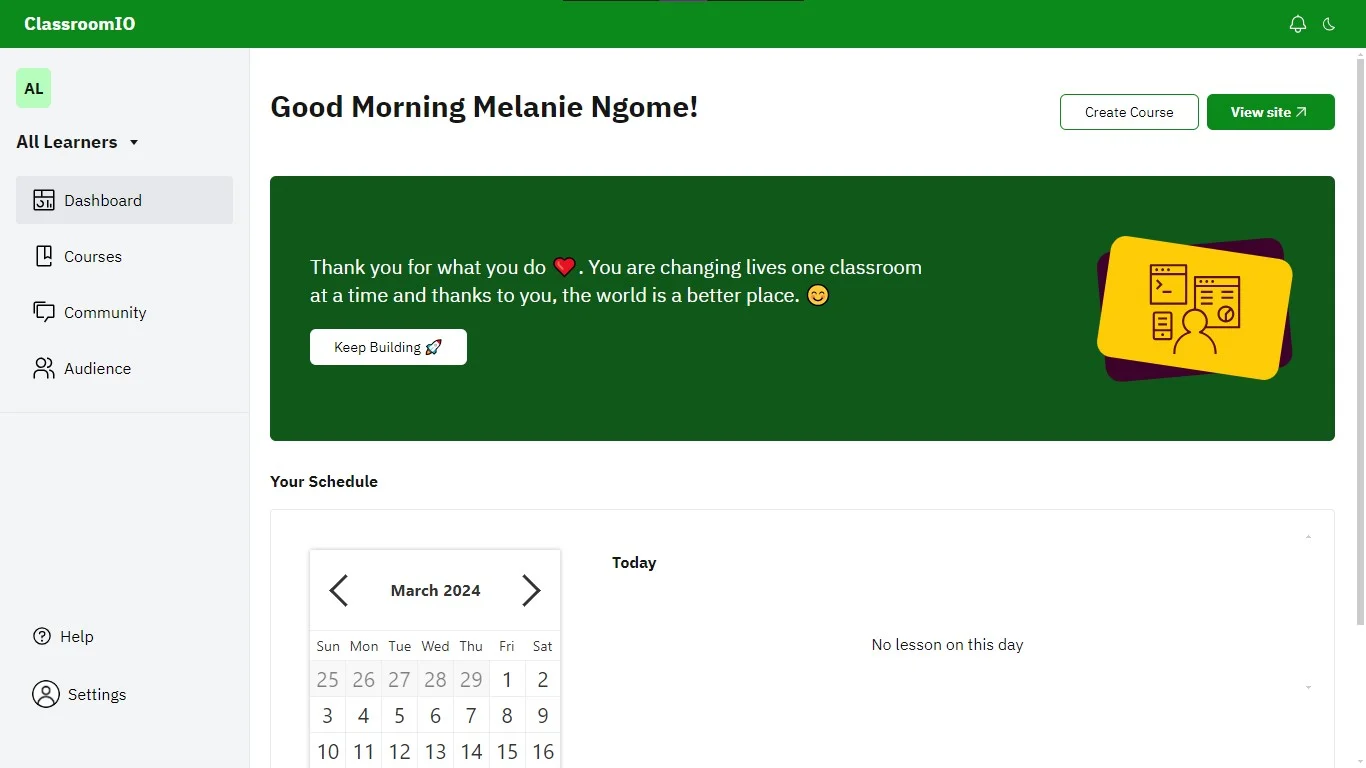
1. Go to the Courses Page
Access the courses page from the dashboard by clicking on Courses via the sidebar menu.
2. Select a Course
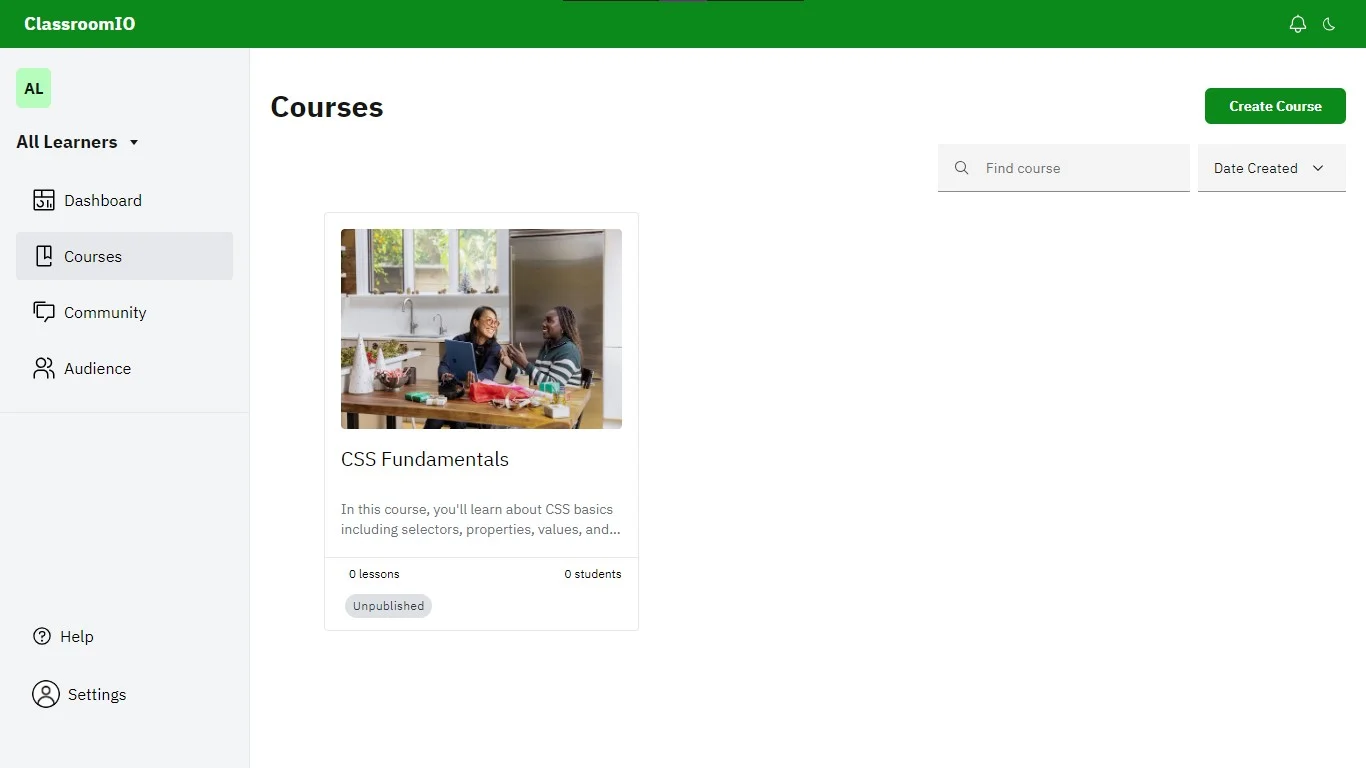
On the courses page, click on a course to go to the course page.
3. Select a Lesson
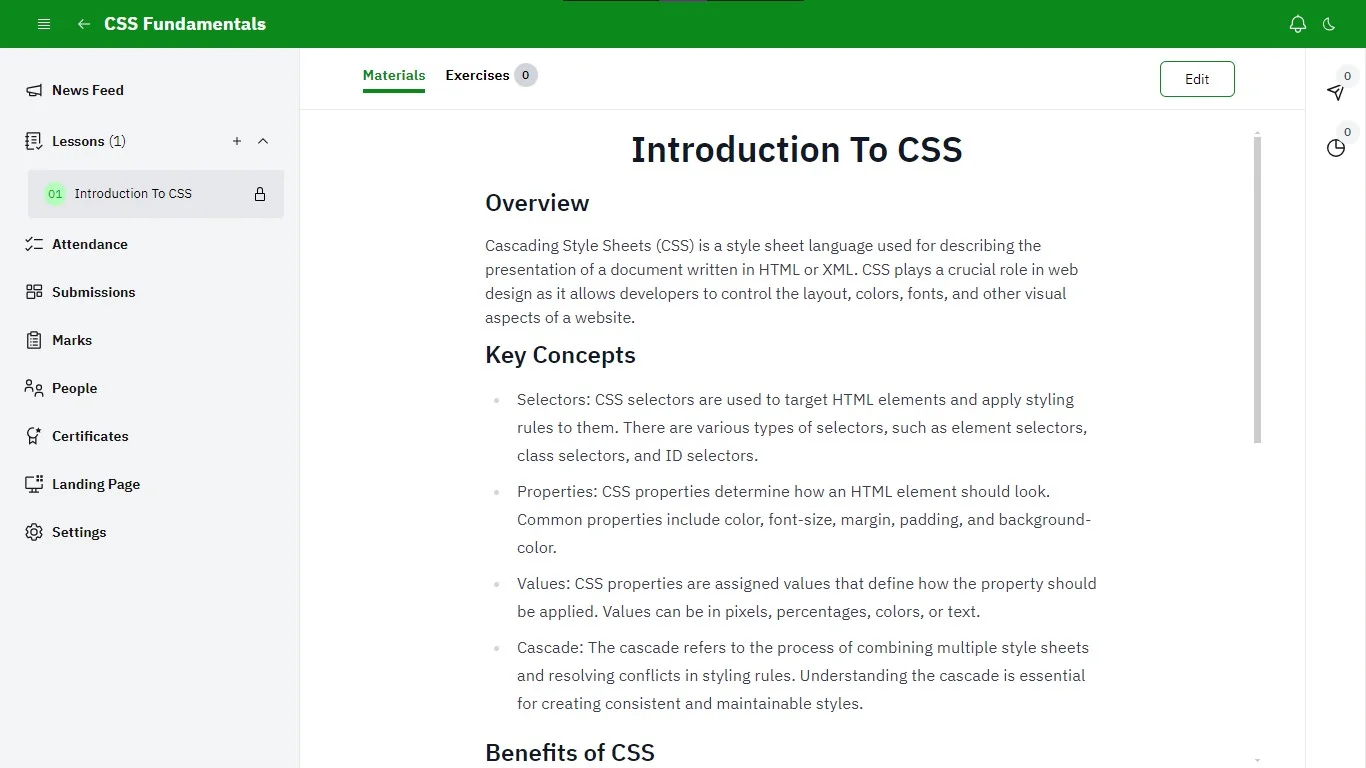
On the course page, click on Lessons via the left sidebar menu and select the lesson you want to create an exercise for.
Alternatively, you can click on the ⌄ icon next to the Lessons option to select a lesson.
4. Add an Exercise
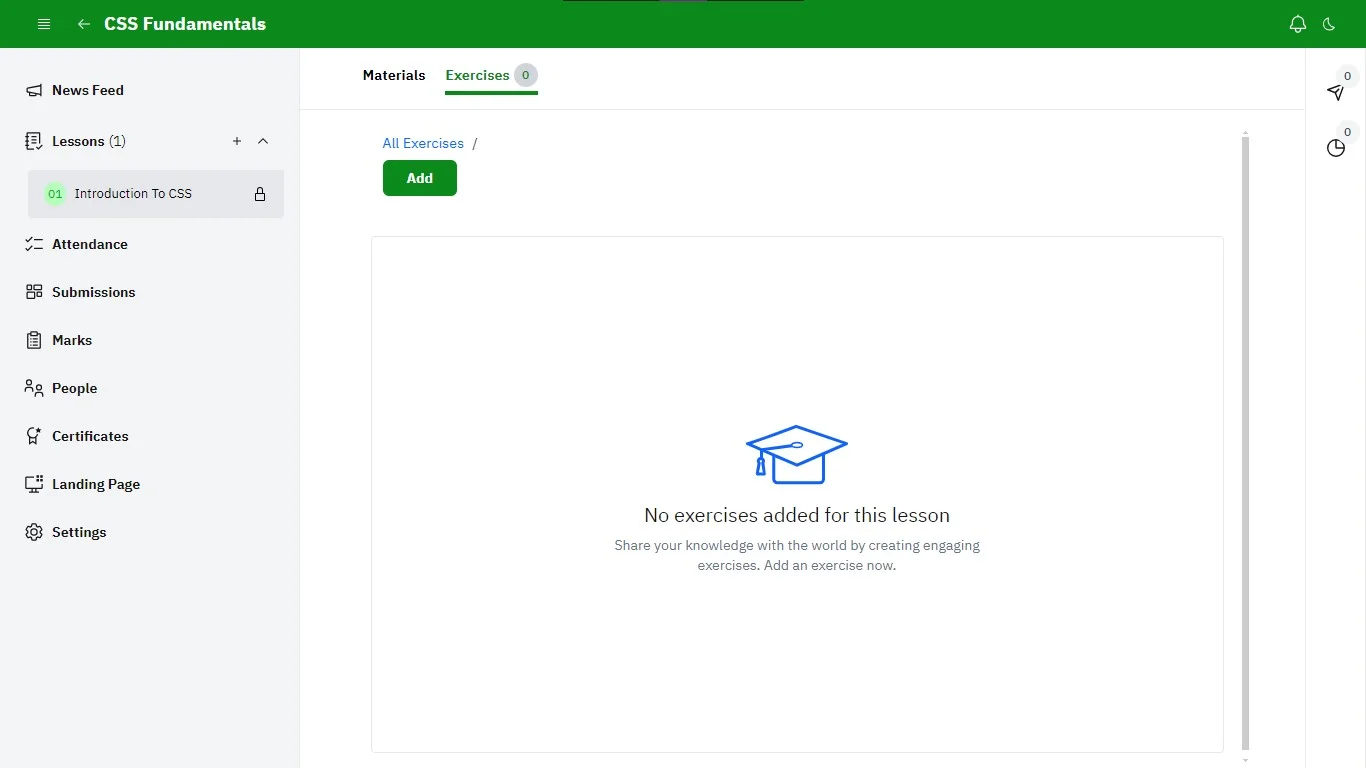
Locate the tabs at the top of the page and select the Exercises tab. Then click on the Add button. On the modal, select a method to create an exercise. You can create an exercise:
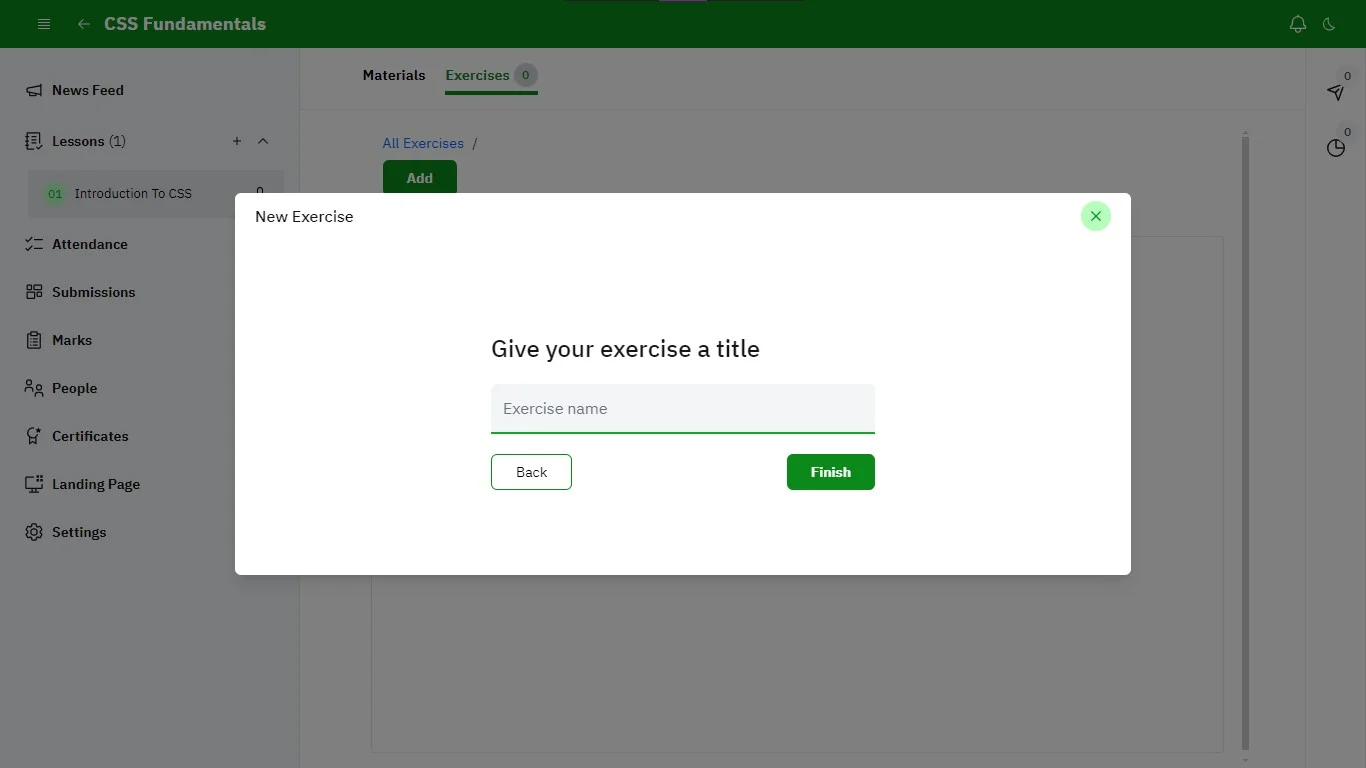
- From scratch: Create an exercise by adding the questions yourself. This is handy if you’ve prepared your questions.
- Enter the exercise name and click on the Finish button.
- Click on the newly created exercise and provide the exercise description, due date, and question details.
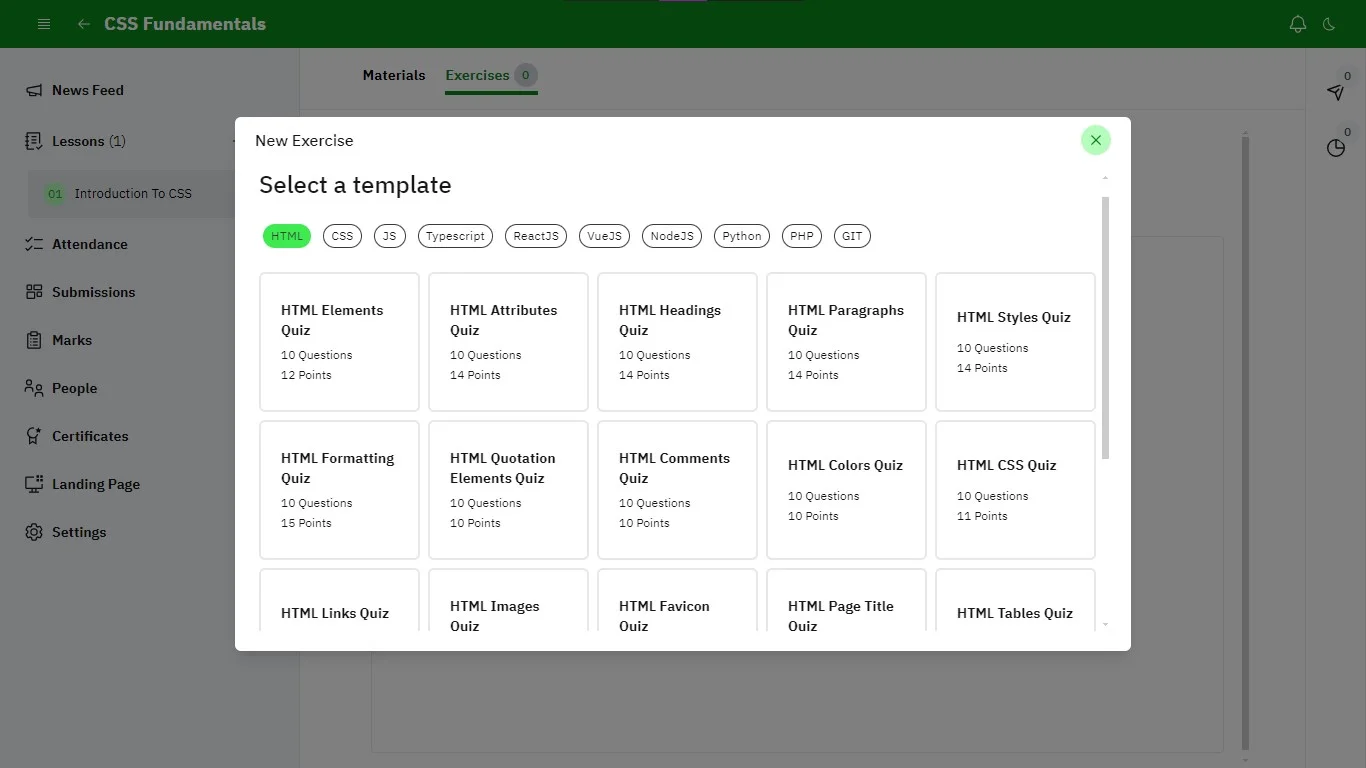
- Using a template: You can select from an array of templates with predefined exercises complete with questions and options.
- Select a template and click on the Finish button.
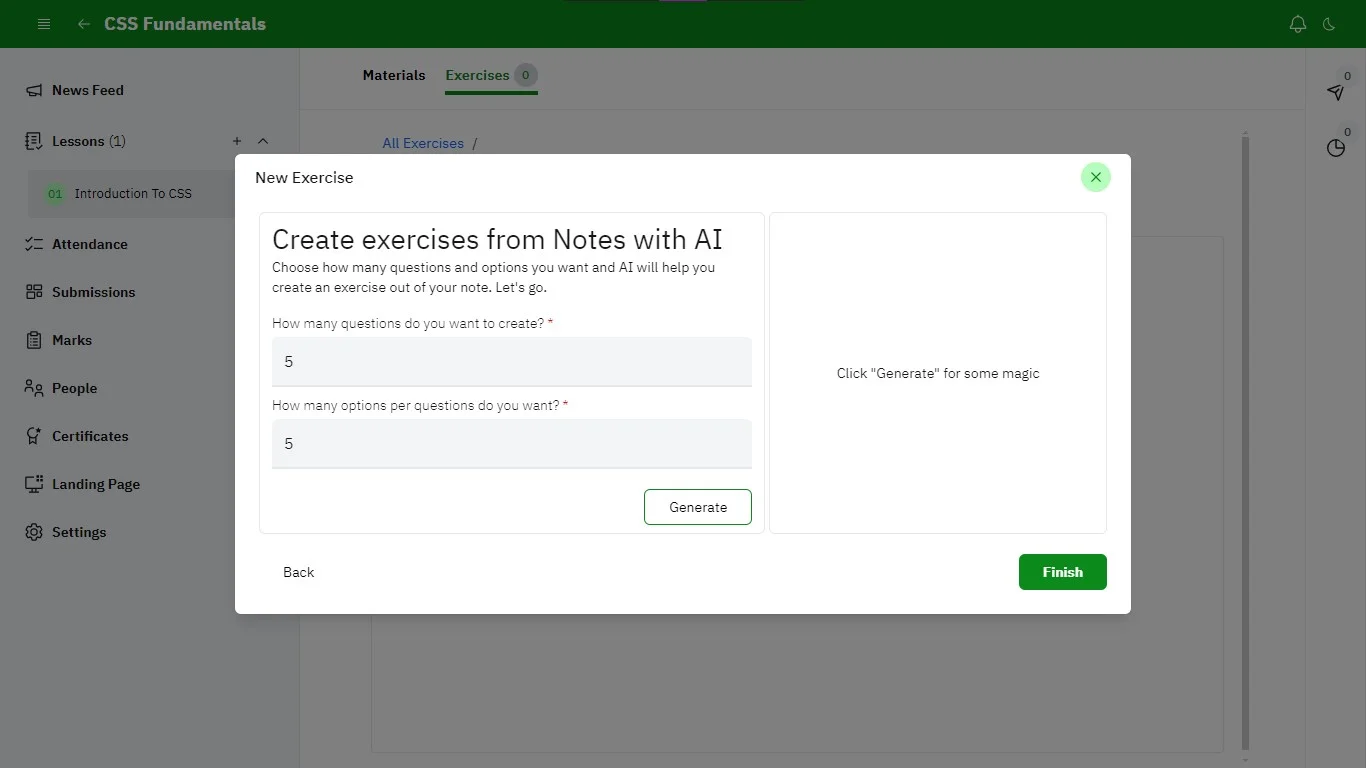
- Using AI: AI helps you generate exercises directly from lesson notes.
- Enter the number of questions and options. Next, click on the Generate button.
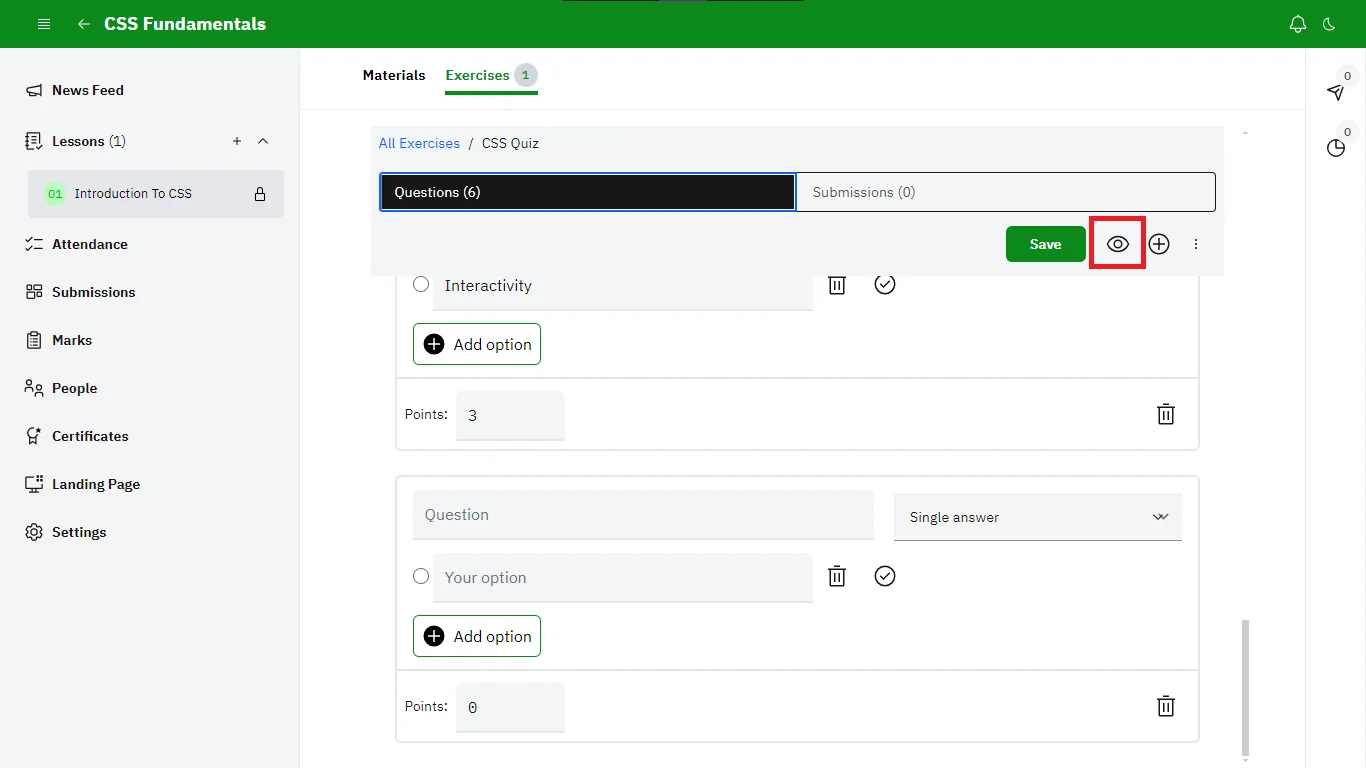
5. Preview Exercise
To preview the exercise, click on the preview icon. This is to ensure the exercise looks and functions as expected.
6. Add Questions
To add a question, click on the add icon.
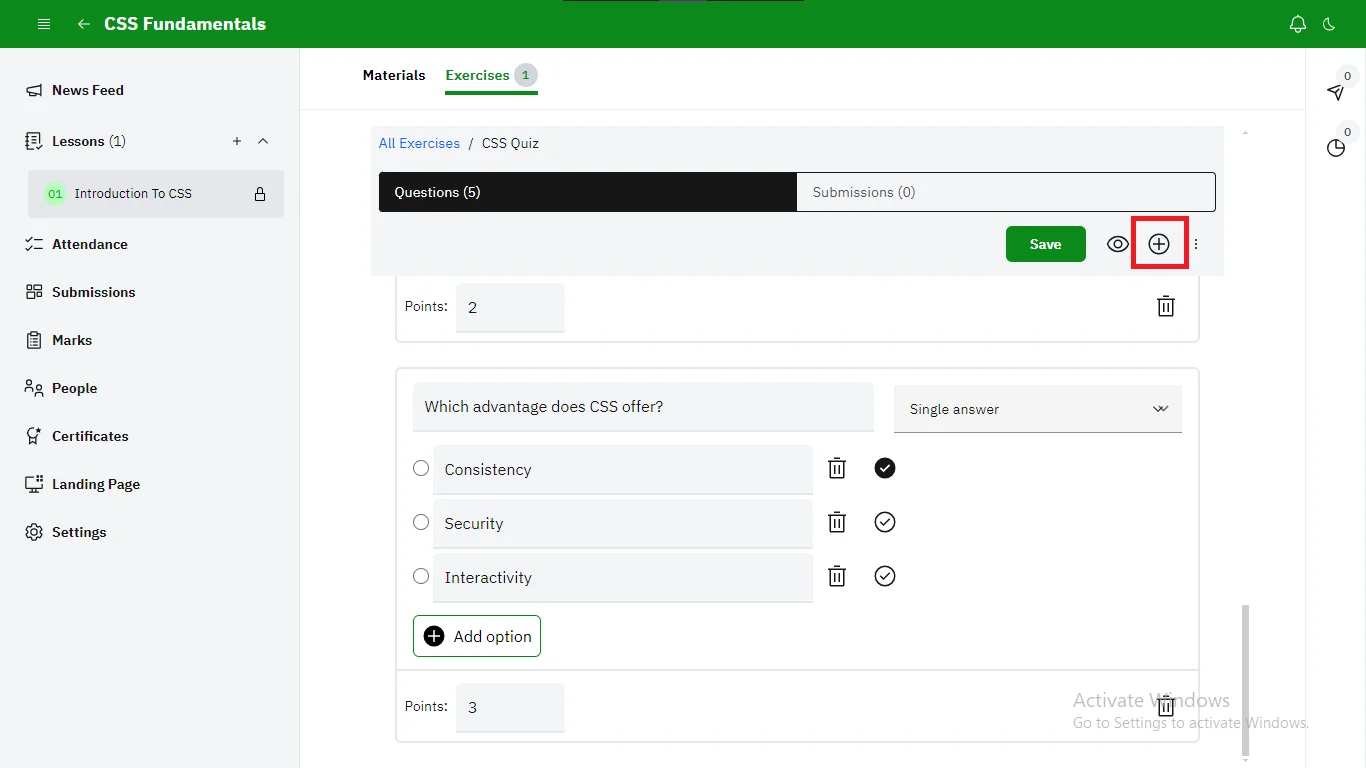
7. Reorder Questions
To reorder questions, click on the three dots > Reorder Questions, then drag and drop the questions.
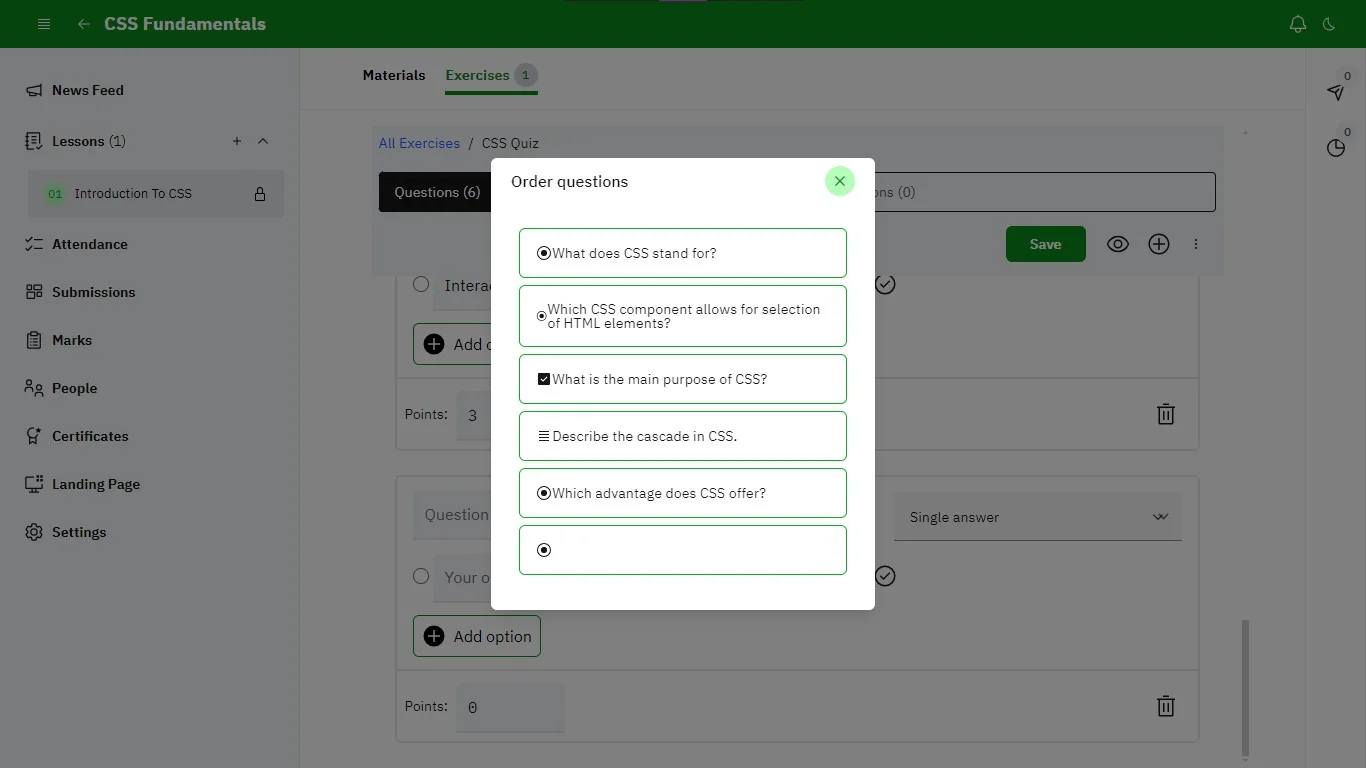
8. Save Changes
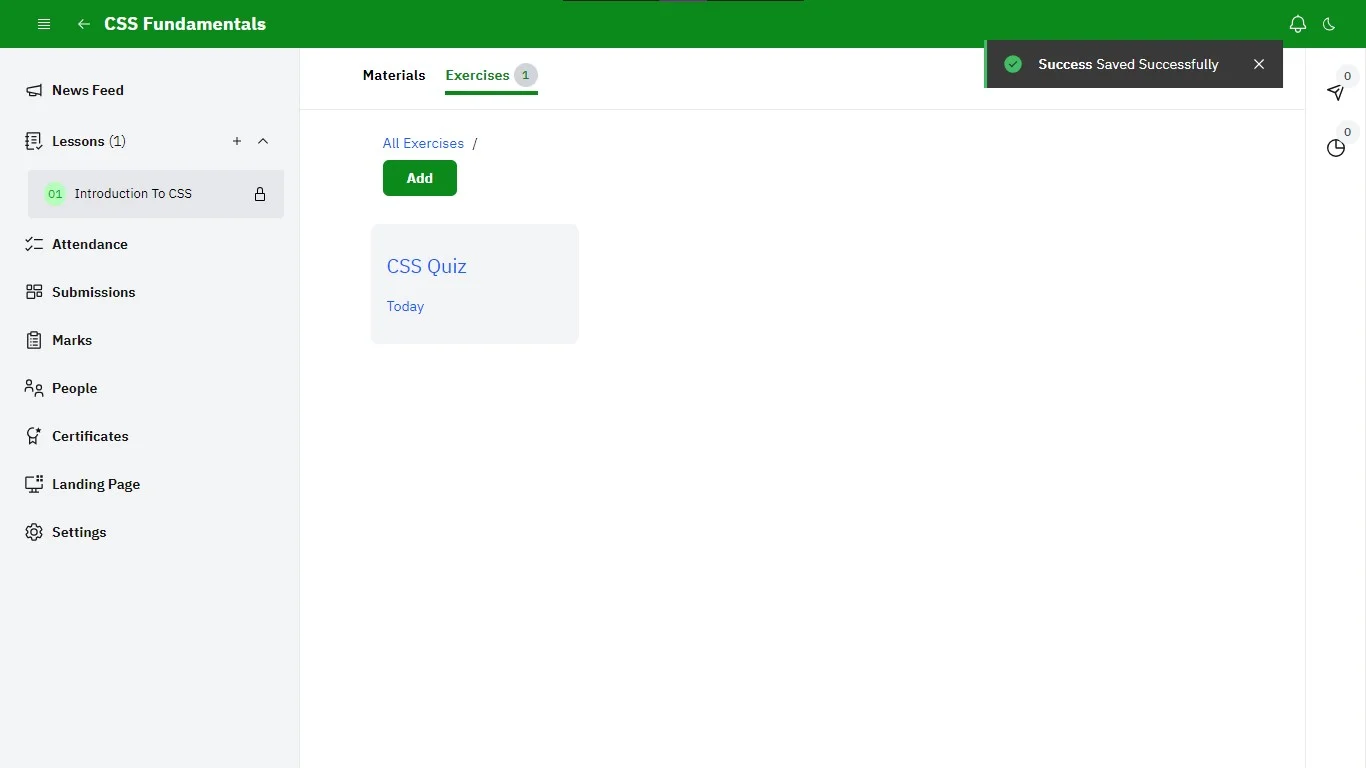
After previewing, adding, and rearranging questions, ensure to save your changes by clicking on the Save button. This will apply your modifications to the exercise.
9. Your Exercise Is Ready
You’ve successfully created your first exercise and it is now accessible to students enrolled in the course. Move on to the next section to start grading your exercise.
Notify students about a quiz
When a quiz is ready, you can email every enrolled student a one-click link to take it. On the exercise page, open the ⋯ menu at the top and choose Notify students.
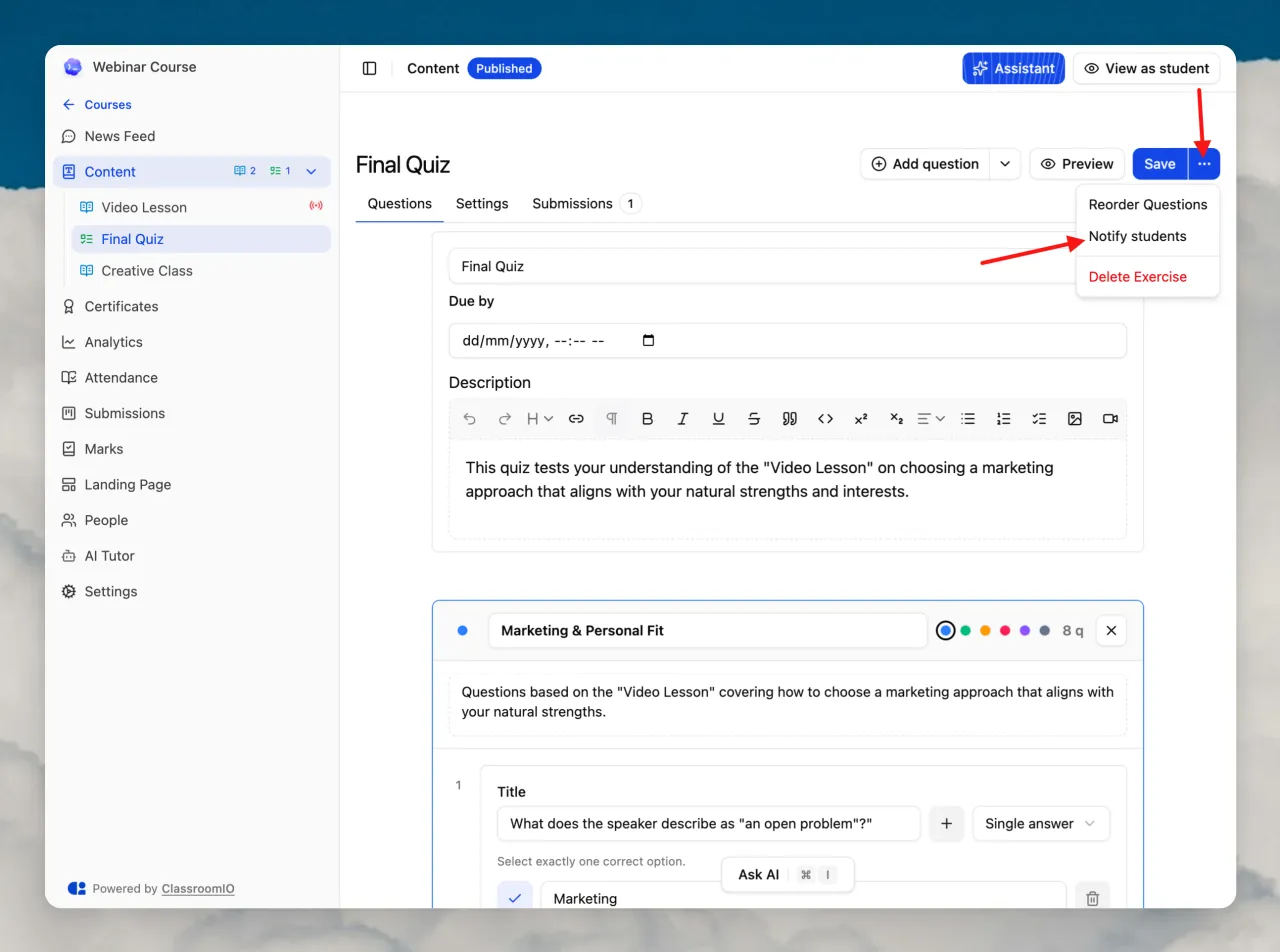
The send runs in the background. A progress indicator appears while emails go out, then confirms when it is done. You can run it again at any time to nudge students who have not taken the quiz yet.
Related guides
- Grade an Exercise: review and score submissions
- Control Course Progression: require a passing score before the next item unlocks
- Create Certificates: issue certificates on completion