

Audience
Manage all students in your organization, view usage, filter, assign to courses, and handle invites from one place.
Audience is your org-wide student directory. It shows every person who belongs to your organization, whether they signed up themselves, accepted a course invite, or were added directly. From here you can search, filter by usage, sort, act on students in bulk, export, and manage pending invites.
For step-by-step tasks, see Manage Your Audience.
What Audience shows
Audience is separate from course-level People. Course People shows who is enrolled in a specific course. Audience shows everyone in your organization regardless of which courses they have joined.
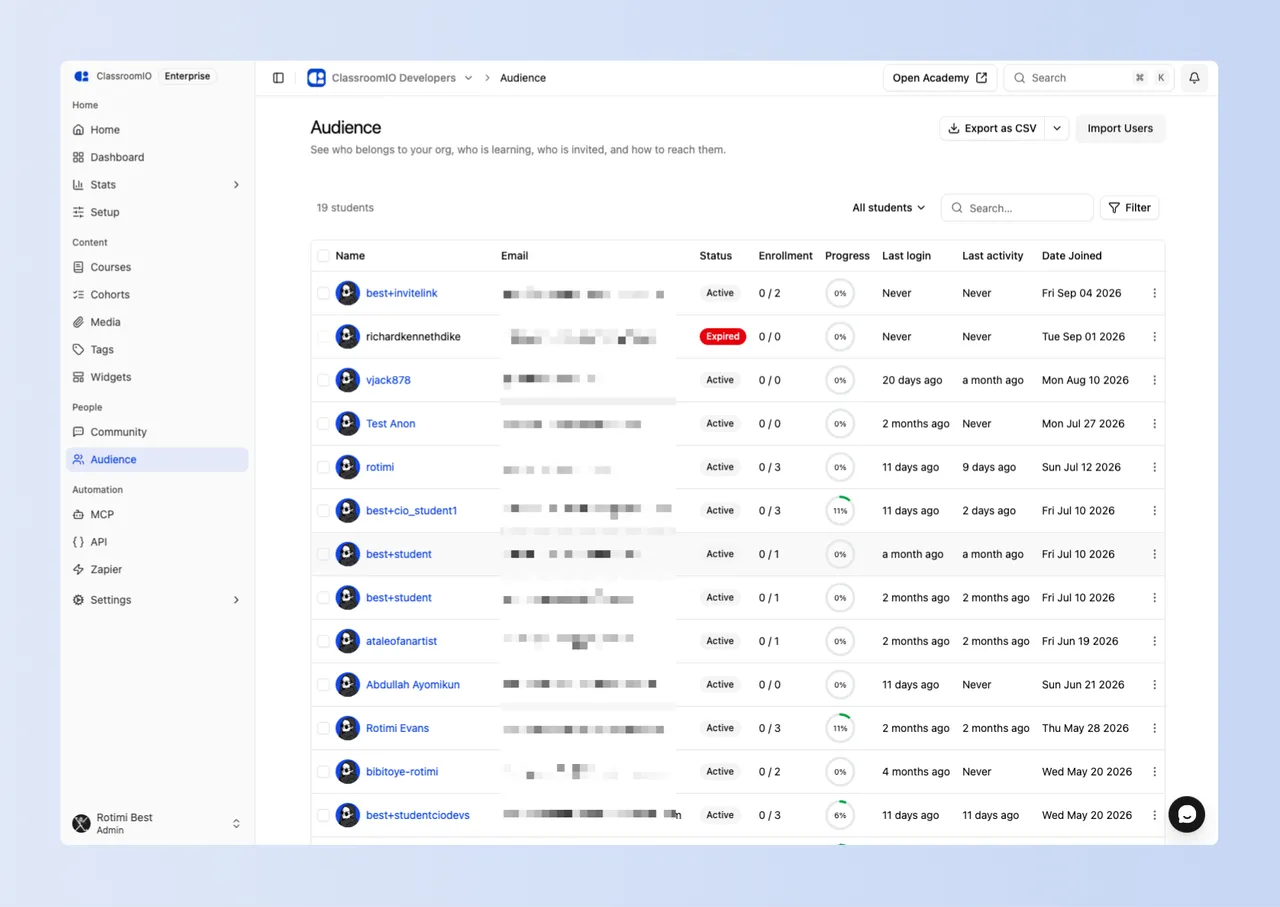
| Column | What it means |
|---|---|
| Name | Student’s display name |
| Account email address | |
| Status | Membership state, or invite state (see Status values) |
| Enrollment | Courses completed out of courses they are enrolled in, for example 1 / 3 |
| Progress | Percentage completed across everything they are enrolled in |
| Last Login | When they last signed in |
| Last Activity | When they were last active in a course |
| Date Joined | When the student joined the organization |
Enrollment and Progress are not the same thing
Enrollment counts whole courses. Progress is a percentage across all the work in them.
A student showing 0 / 2 and 90% has finished neither course but is nearly through both. One showing 1 / 2 and 20% has finished a short course and not started a long one. Read them together.
Progress counts lessons and exercises, matching the figure the student sees on their own course card. Someone who has watched every lesson but submitted no exercises is not counted as complete.
Status values
A student has two kinds of status, and they are independent. Someone can be archived and still hold a pending invite.
The column shows one of them: the membership state whenever it is anything other than Active, otherwise the invite state. So an archived student with a pending invite reads Archived. Rows in a non-active state are greyed as well.
Membership status
Applies to people who belong to your organization.
| Status | Meaning | Plan seat |
|---|---|---|
| Active | Full access to your academy and their courses | Uses a seat |
| Deactivated | Access removed, record kept. Reversible at any time | Uses a seat |
| Archived | Access removed, record kept. Reversible at any time | Frees a seat |
Archive is the one to use for dormant students, because it gives you the seat back. Deactivate suspends someone you expect to return.
Invite status
Applies to people who have been invited.
| Status | Meaning |
|---|---|
| Active | Student has a verified account and is a member of your org |
| Pending | Invite was sent but the student has not yet accepted it |
| Expired | The invite link passed its expiry before the student accepted |
| Revoked | The invite was manually revoked by an admin |
Filters
Every filter combines with the others, and your selection lives in the page address, so you can bookmark a view or send it to a colleague and they see the same list. Defaults are left out of the address, so a plain Audience URL is the default view.
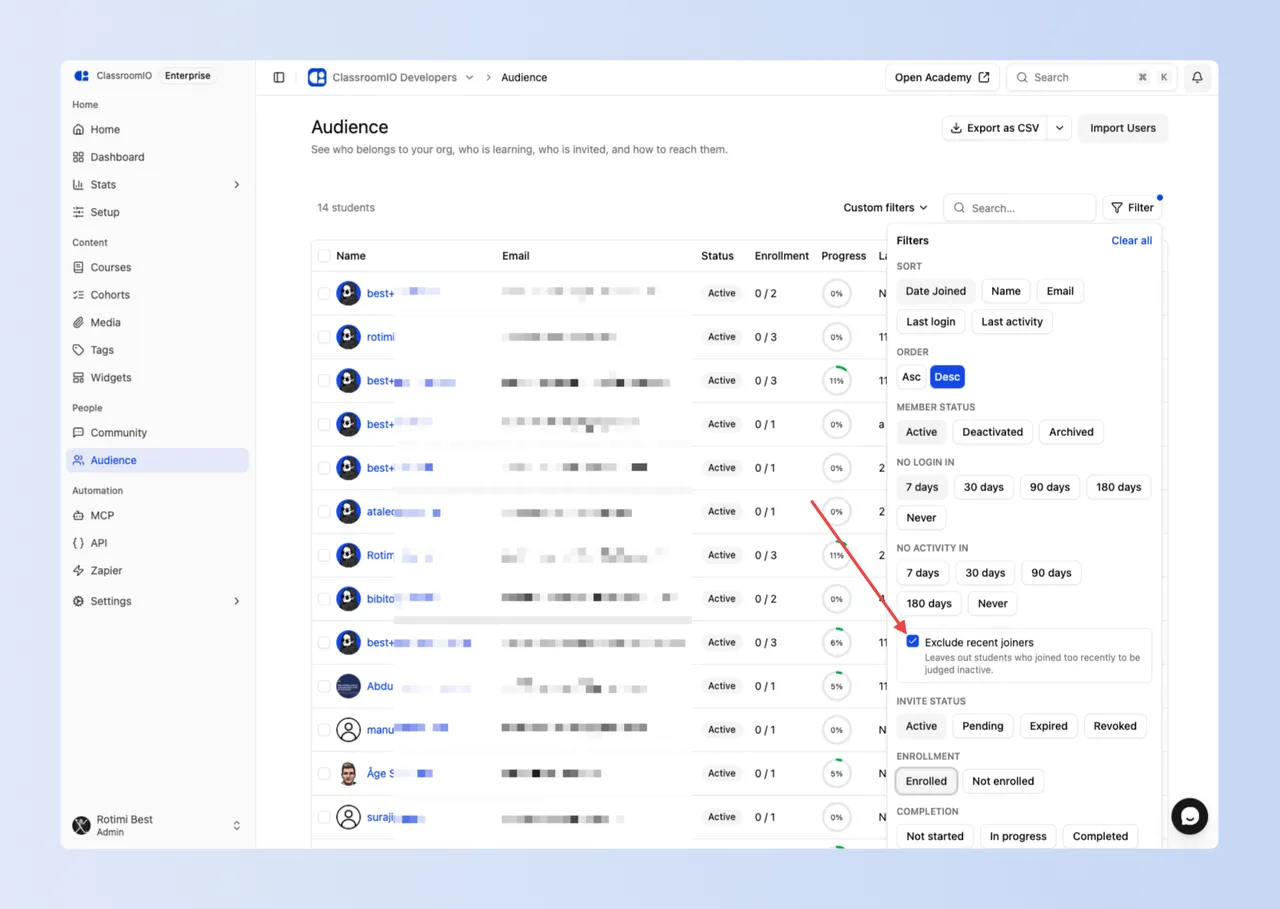
| Filter | Options |
|---|---|
| Status | Active, Deactivated, Archived |
| No login in | 7, 30, 90 or 180 days, or Never logged in |
| No activity in | 7, 30, 90 or 180 days, or No activity recorded |
| Invite status | Active, Pending, Expired, Revoked |
| Enrollment | Enrolled, Not enrolled |
| Completion | Not started, In progress, Completed |
You can also search by name or email, and sort by date joined, name, email, last login or last activity.
Completion describes only students who are enrolled in something. Someone with no enrolments at all matches none of the three options, so use Enrollment, Not enrolled to find them.
Excluding recent joiners
Set either time filter and an Exclude recent joiners toggle appears, switched on by default.
While it is on, the results leave out anyone who joined too recently to be judged inactive. They still exist and still appear in an unfiltered Audience; they are simply not returned by this search, so you cannot archive them by mistake.
“Recently” is measured against Date Joined, the same column in the table. That is when the person joined this organization, not when they created their Edvello account, so somebody with a three-year-old account who was invited here last week counts as new.
The window you picked is also the grace period:
| Filter | Left out while the toggle is on |
|---|---|
| No activity in 90 days | Anyone who joined in the last 90 days |
| No login in 30 days | Anyone who joined in the last 30 days |
| Never logged in | Anyone who joined in the last 7 days |
Never logged in has no window of its own, so it uses a flat 7 days. Someone invited yesterday has technically never logged in, but the invite email may not even have been opened yet.
Turn it off when you want the newest people included, which is the point of auditing an invite batch: “who from last week’s 200 invites still hasn’t signed in” is only answerable with the toggle off.
Saved views
One click for the questions asked most often:
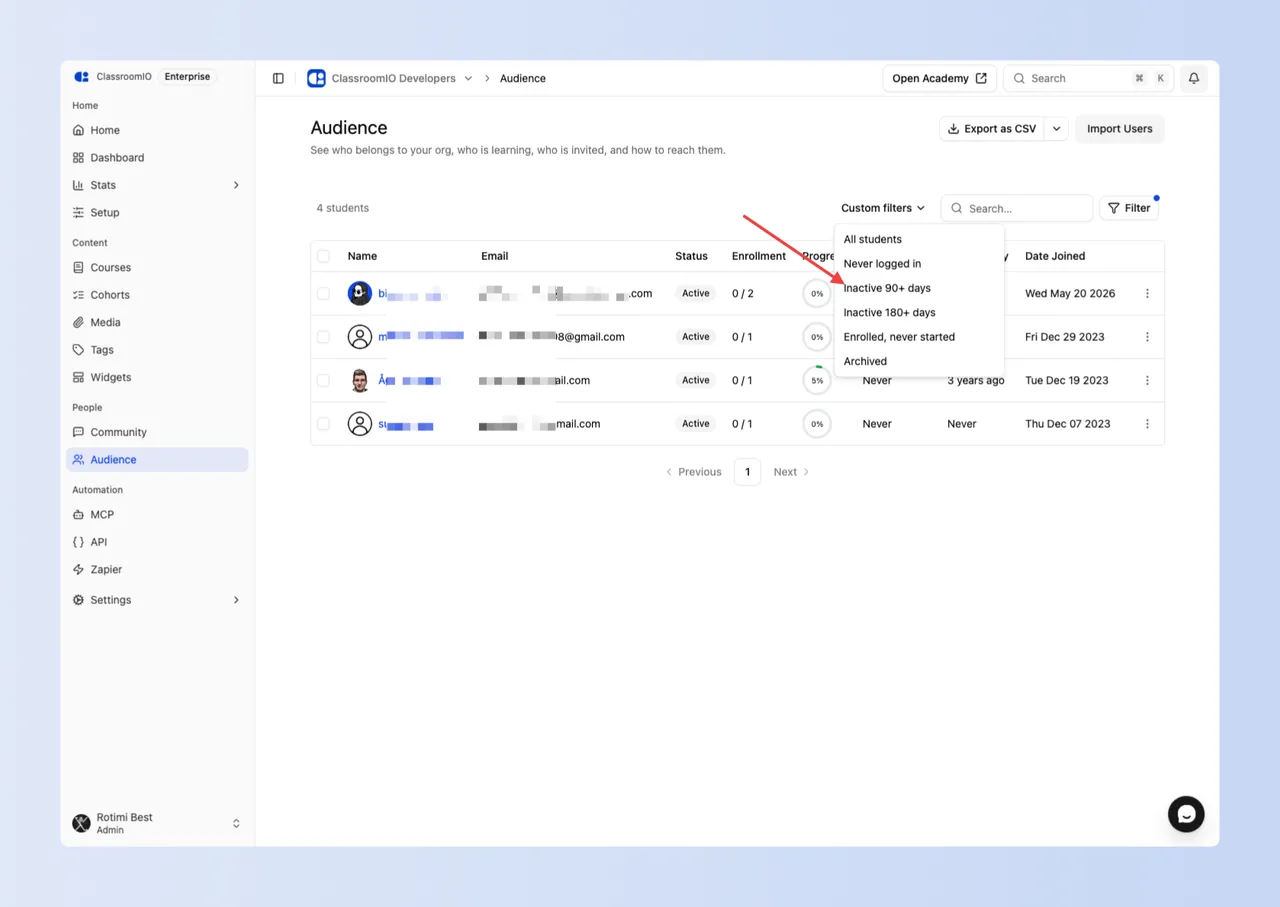
- All students
- Never logged in
- Inactive 90+ days
- Inactive 180+ days
- Enrolled, never started
- Archived
Change any filter and the selector reads Custom filters.
Related guides
- Manage Your Audience — filter, act in bulk, import and export
- Find and Remove Inactive Students — the full review-and-archive workflow
- Exports — formats, limits, and what each export contains
- How Course Enrollment Works — how students join courses
- Roles and Permissions — difference between students and team members