

Share Your Academy (Open Graph & Favicon)
How favicons, link previews, and social embeds work when you share your academy URL on Discord, Slack, iMessage, and other platforms.
When you share your academy URL — for example https://ciodevs.edvello.com or your custom domain — chat apps and social networks build a link preview from two things:
- Meta tags in the page HTML (title, description)
- An Open Graph image (
og:image) — the large preview thumbnail
Edvello generates both automatically for cloud academies. This guide explains what you control in the dashboard and what to expect when you change branding.
For the public homepage editor, see Customize Your Academy Landing Page. For org name, logo, and theme, see Customize Your Organization.
Favicon (browser tab icon)
The favicon is the small icon shown in the browser tab when someone opens your public academy site.
Set a custom favicon
1. Open Domains
Open Settings from the account menu, then go to Domains and use the favicon controls.
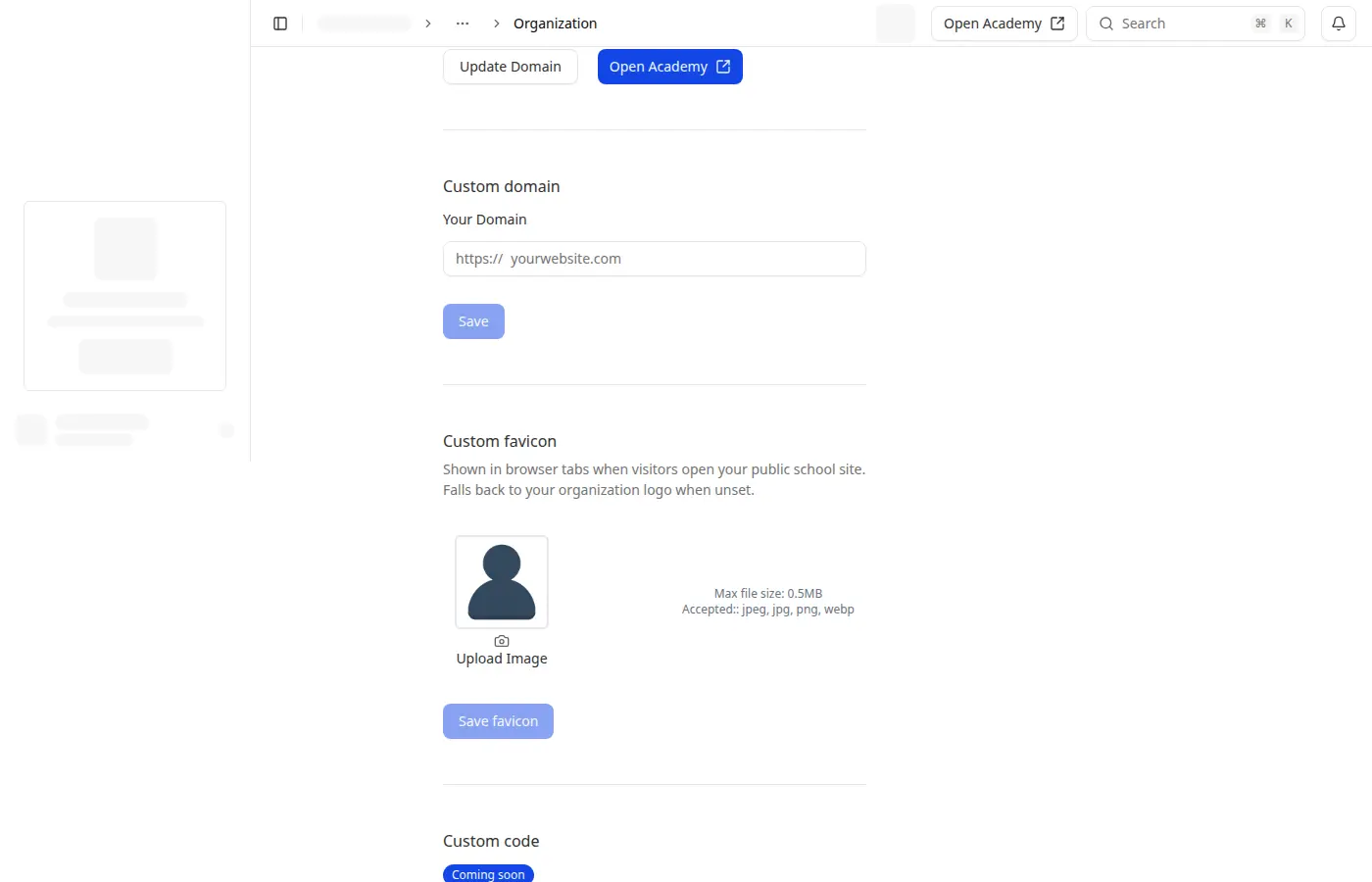
2. Upload under Custom favicon
Use the image picker in the Custom favicon section and click Save favicon.
Fallback when no favicon is set
If you have not uploaded a custom favicon, Edvello uses your organization logo (the same image as in Settings → Branding). You do not need to upload the same file twice unless you want a different crop or format for the tab icon.
Link previews (Open Graph)
When your academy homepage is shared, Edvello provides:
| Meta field | Source |
|---|---|
| Title | Organization name + hero heading (from your landing page), e.g. AI Academy | Become a Certified AI Engineer |
| Description | Hero subheading, or footer tagline if no subheading |
| Preview image | A generated Academy card with your logo, org name, theme colors, and (on paid plans) your tagline |
Free-plan academies include a small Powered by Edvello watermark on the generated image. Paid plans show your tagline and no watermark.
What the preview image looks like
The generated card includes:
- Your logo (top-left), or initials on a theme-colored background if you have no logo
- An Academy label and org name
- Theme-tinted background and accent colors from Settings → Branding → brand color
- Tagline text on paid plans (from landing page footer tagline or hero subheading)
When you change name, theme, or tagline
| Change | Page title & description | Preview image |
|---|---|---|
| Organization name | Updates on next page load | Regenerated when the image is next requested |
| Brand / theme color | Unchanged | Regenerated — colors on the card update |
| Hero subheading or footer tagline | Description updates on next page load | Regenerated on paid plans (free plans do not show tagline on the image) |
| Organization logo | Unchanged | Regenerated |
Refreshing Discord or Slack embeds
Chat apps cache link previews aggressively:
- Save your changes in the dashboard.
- Open your public academy URL in a browser (this helps regenerate the preview image).
- Post the URL as a new message — editing an old message usually keeps the cached preview.
Discord in particular may cache failed previews for several minutes if the image was slow to generate on an earlier attempt.
Course and lesson links
Public course pages use the course logo or banner for og:image when available. If a course has no banner, the preview may fall back to the course logo only. Org homepage links always use the dynamic Academy card described above.
Related guides
- Customize Your Organization — name, logo, brand color
- Customize Your Academy Landing Page — hero heading and subheading (used in title and description)
- Set Up a Custom Domain — share links on your own hostname
For technical assistance with sharing previews, contact Edvello support.