

Run a Live Class
Schedule a live session on a Live class course, set the join link, time, and timezone, and let Edvello remind students and send a calendar invite.
A Live class course runs around scheduled sessions you host on your own video tool (Zoom, Google Meet, Teams). Edvello handles everything around the session: the join link, the schedule, automatic reminders, a calendar invite, and a one-click way for students to join.
Set the course type
Set the course type to Live class in the course’s Settings tab. See Course Types for what each type does.
Schedule the session
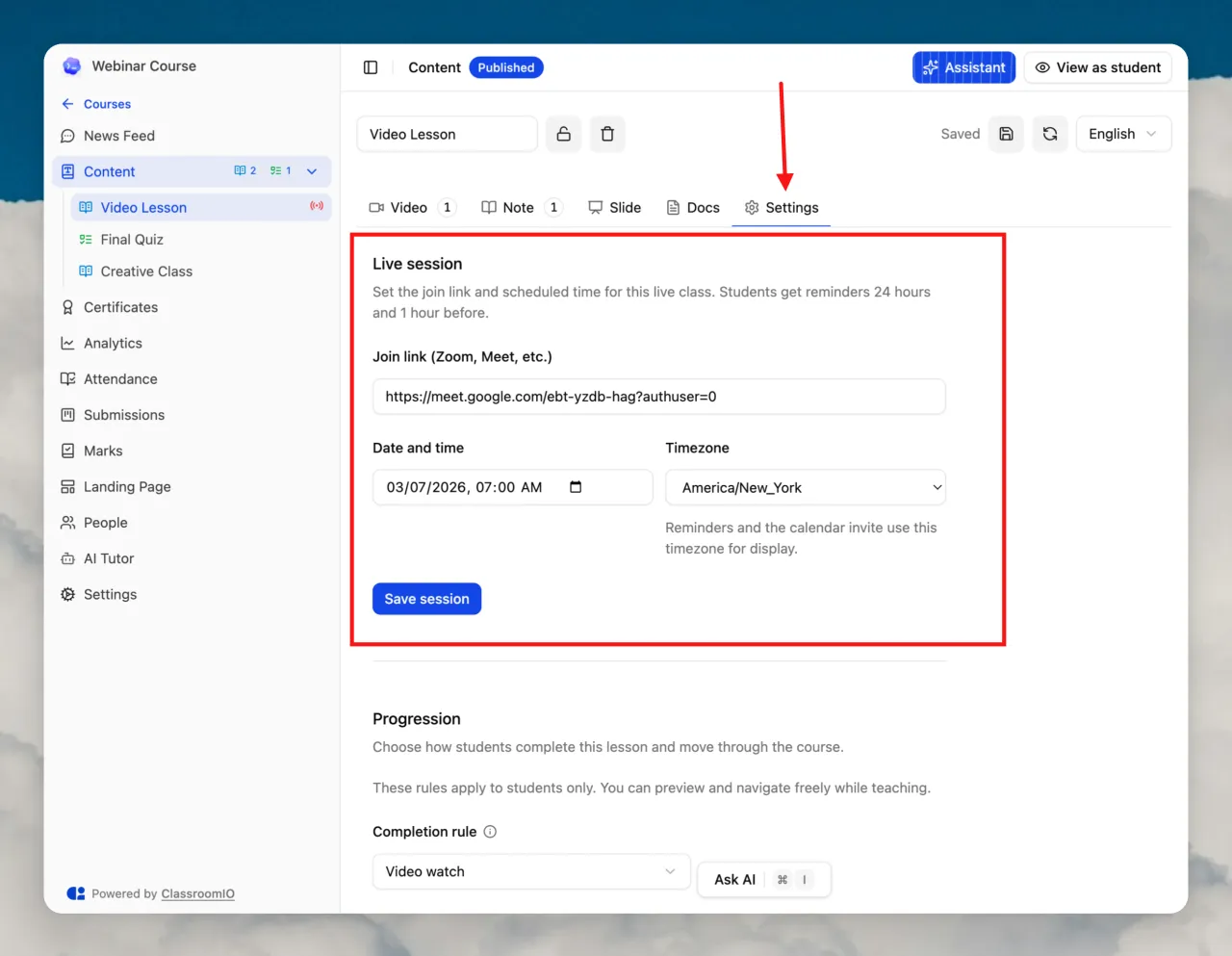
Each session lives on a lesson. Create the lesson for what you’ll run live, then open its Settings tab and fill in the Live session section.
1. Create a lesson to run live
Add a lesson to the course for the session you’ll hold live (for example, the webinar topic). See Create Your First Course for adding lessons.
2. Add the join link
In Join link (Zoom, Meet, etc.), paste the meeting URL students will use to join.
3. Set the date and time
Pick the Date and time of the session.
4. Choose the timezone
Set the Timezone for the session. Reminders and the calendar invite display the time in this timezone, so students always see when the session starts in the zone you intend, regardless of where you or they are located.
5. Save the session
Click Save session.
What students get
Once a session is scheduled, enrolled students automatically receive:
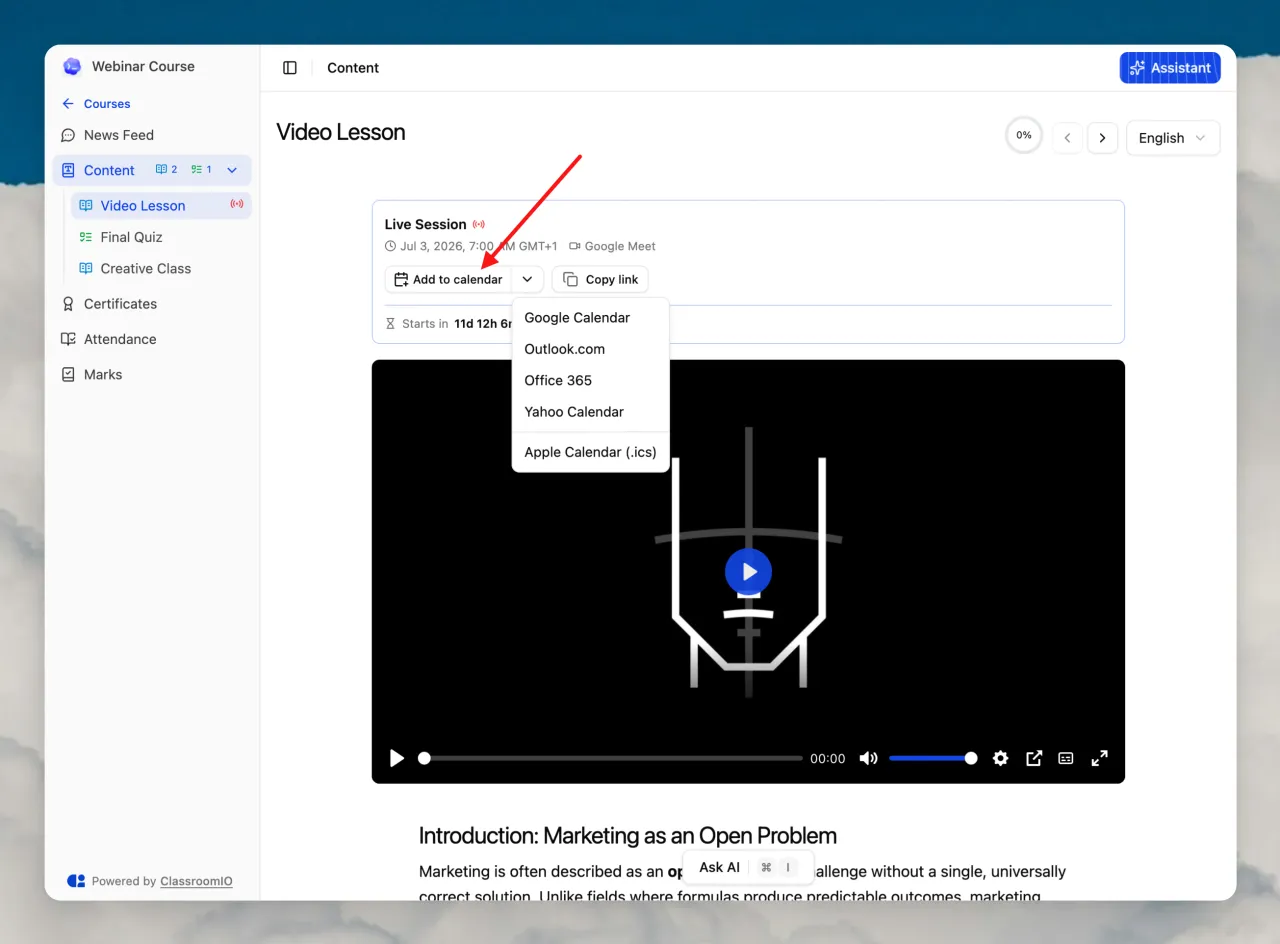
- A calendar invite when they enroll. The welcome email for a Live class course attaches a calendar invite (
.ics) for the next session, so students can add it to their calendar right away. - Reminder emails. One about 24 hours before and one about 1 hour before the session, each with the join link. The 24-hour reminder also includes the calendar invite. Once added, the calendar reminds the student on its own.
- A Join session button. On their LMS Home, students see a Join session button on the course while a session is upcoming, which opens the join link directly.
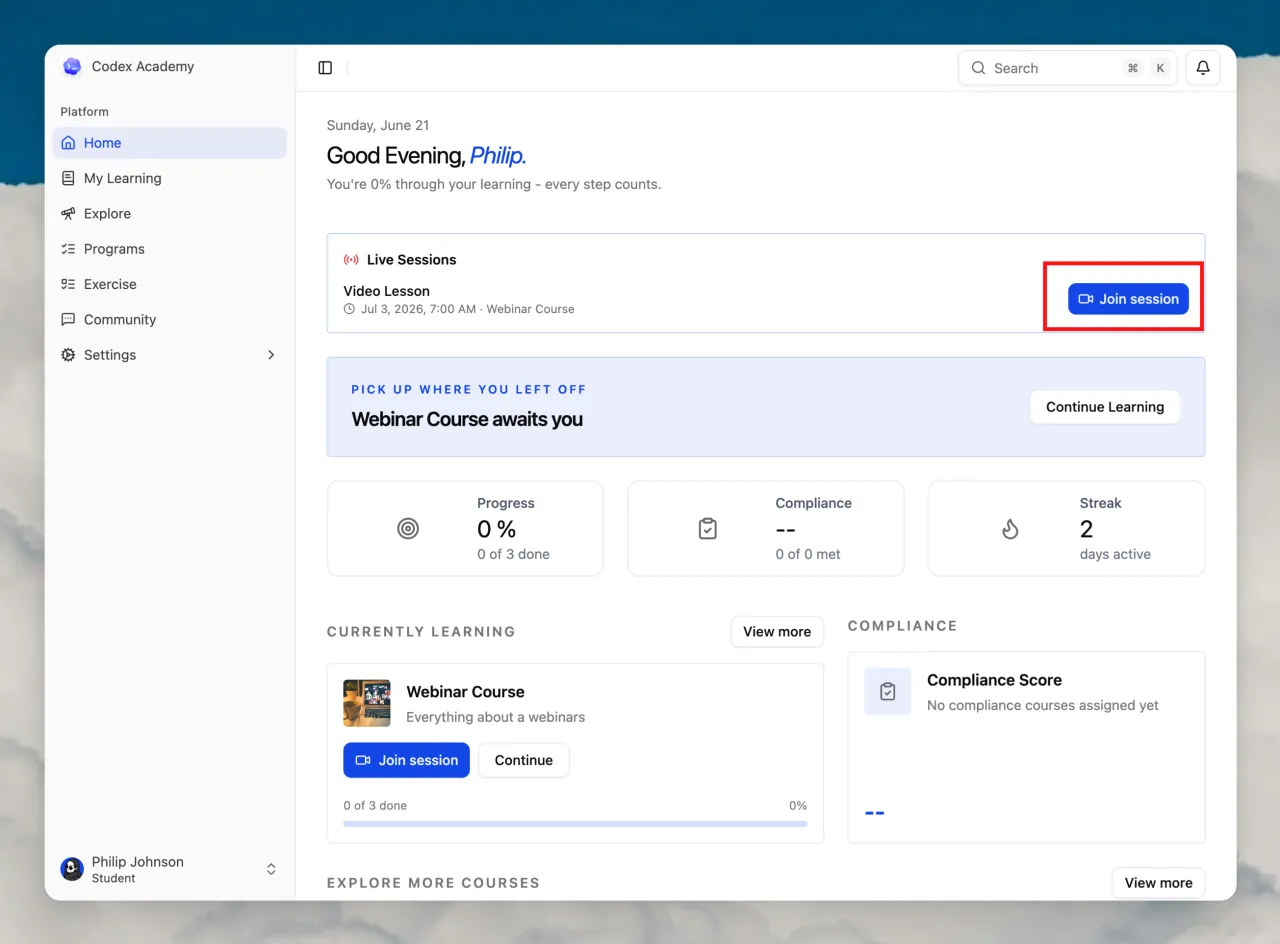
In the course content sidebar, a live-session lesson shows a red live (broadcast) icon, so you and your students can spot it at a glance.
Change the session time
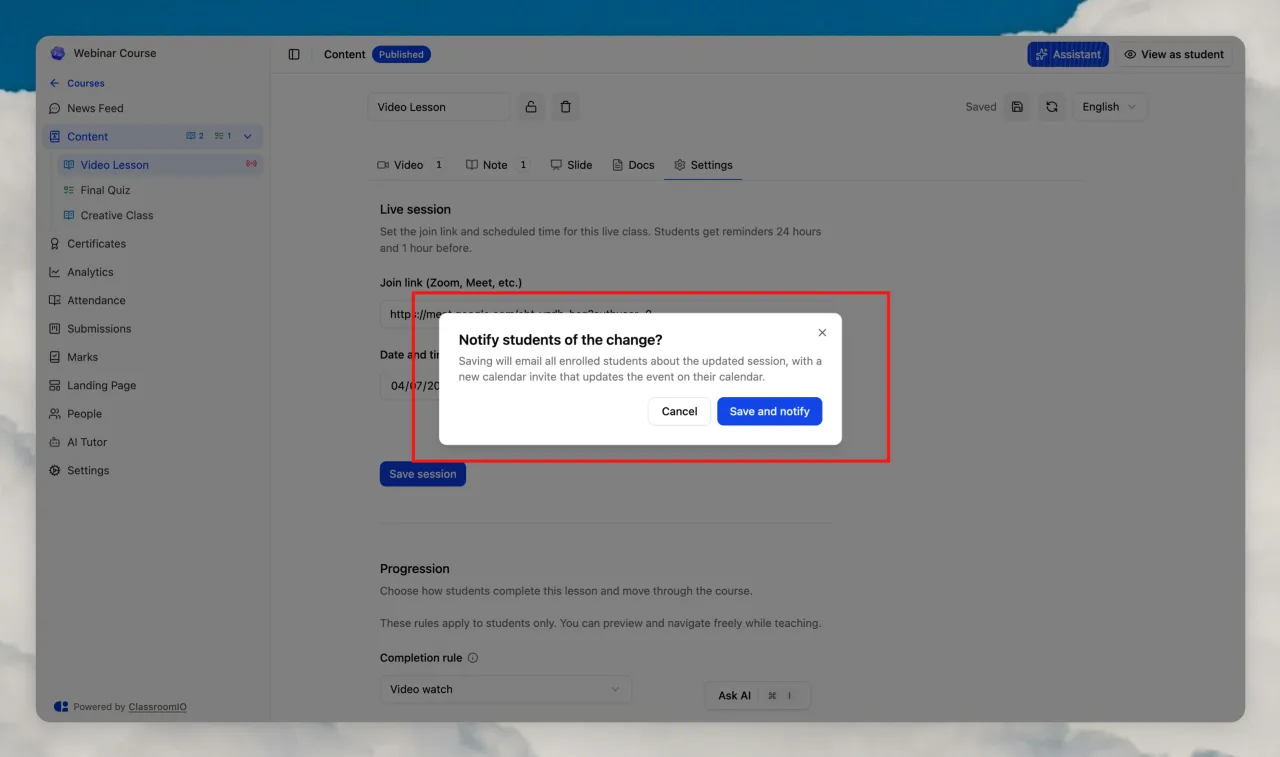
If you change the Date and time, Join link, or Timezone of a session that students are already enrolled in, saving asks you to confirm with Notify students of the change?. Choosing Save and notify emails every enrolled student about the update with a fresh calendar invite that updates the existing event on their calendar instead of creating a duplicate.
After the session
Pair the session with a post-session quiz and a certificate to round out the workflow:
- Add a graded quiz with Create an Exercise, then use Notify students to send everyone a link to take it.
- Issue completion certificates with Create Certificates.
Related guides
- Course Types: what Live class and the other types do
- Create an Exercise: add a post-session quiz
- Create Certificates: recognize completion
- How Course Enrollment Works: how students join the course